
mTool & mPortal MBRS Filing Guide (2026): Step-by-Step for SSM XBRL Submissions
Introduction
Under MBRS 2.0, companies and authorised filing professionals submit statutory documents in XBRL format through the digital filing platform introduced by SSM. Filing is carried out in two stages: preparing the financial statements in a standardised template and tagging the financial data in mTool, then validating the filing and submitting the generated XBRL file through SSM's mPortal.
This step-by-step walkthrough shows you how to get your data ready, how to create an XBRL filing, how to resolve validation errors and how to complete the filing, making life easier for company secretaries, accountants and finance teams.
Updated for MBRS 2.0: SSM officially launched MBRS 2.0 on 25 September 2024. This guide reflects the latest mTool 2.2 and mPortal requirements under MBRS 2.0, where mandatory submissions are made on a phased basis and a broader scope for audited financial statements is recognised under the Phase 3 filing with effect from 1 June 2025. Companies required to file under the extended filing requirements can submit their Annual Returns and Financial Statements under MBRS 2.0 through the relevant XBRL filing categories, in accordance with statutory requirements and exemptions.
What You Learn in This Guide
- Who must file and which documents are required under MBRS 2.0
- Preparing source documents before XBRL tagging
- Importing or entering XBRL data in mTool 2.2
- Attaching and naming supporting documents correctly
- Running validation and resolving validation errors
- Lodging XBRL submissions through mPortal step by step
- Common MBRS filing errors and how to fix them
Malaysian Financial Reporting Standards (MFRS)
The MFRS framework is adopted by companies that do not fall under the MASB definition of a private entity. Listed companies and those governed by the financial reporting standards of the Securities Commission Malaysia (SC) or Bank Negara Malaysia (BNM) are among the companies it applies to.
Malaysian Private Entities Reporting Standard (MPERS)
MPERS is available to companies that are private entities under the MASB definition. They may adopt either MPERS or MFRS, as long as the chosen standard is applied in its entirety, in accordance with the applicable accounting standards. For a closer comparison, read our guide on MFRS vs MPERS in Malaysia.
Important: Make sure your financial statements are close to final before you start tagging. Changes to the directors' report, notes, comparative figures or share capital can mean several XBRL tags need to be revised. Review the reporting framework before you start as well: using the wrong one can change the financial statement template and add work when amending the filing.
mTool Guide: How to Prepare and Test Your XBRL Submission
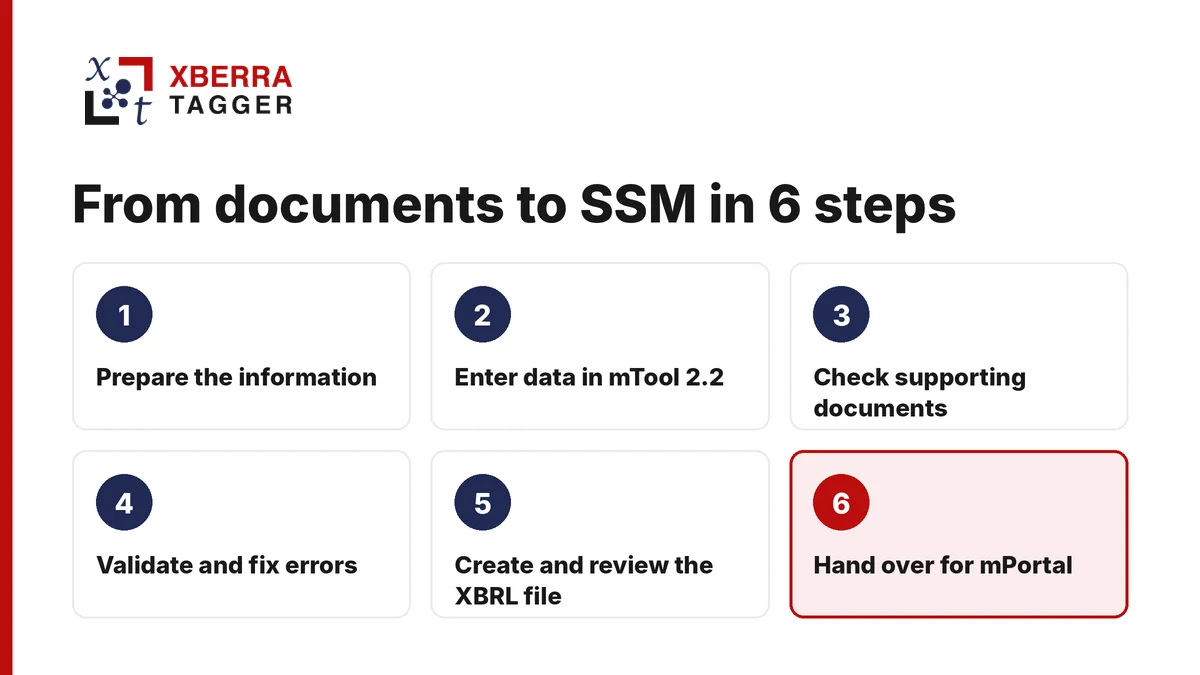
1. Prepare the Information Before Opening mTool
Before preparing your MBRS filing, gather all the information and documents needed for the chosen filing type. What you need varies depending on whether you are filing an Annual Return (AR), Financial Statements and Reports (FS) or an Exemption Application (EA).
For financial statements, have ready the financial statements, directors' report, auditor's report if applicable, notes to accounts and supporting financial information. For an Annual Return, have the latest details of the company, registered office, directors, shareholders and other company information.
Check the company registration number, financial year end and reporting framework before you begin. For financial statements, also confirm whether the accounts are prepared under MFRS or MPERS and whether they are standalone or consolidated.
Tip: Use the correct source details for the financial year and filing type you are preparing. If financial statements or company details change during preparation, update the information in mTool before generating the final XBRL file.
2. Create the Filing and Enter Information Using mTool 2.2
Open mTool 2.2 and select the relevant filing type and the relevant Act. Enter the required company and filing information, then work through the relevant sections of the MBRS template.
For financial statements, enter the figures in the applicable statements and complete the necessary disclosures, which may include:
- Statement of financial position
- Statement of profit or loss and other comprehensive income, where applicable
- Statement of changes in equity, where applicable
- Statement of cash flows, where applicable
- Notes to the financial statements
- Directors' and auditors' information, where applicable
For Annual Returns, enter the company particulars and annual return details from the template you have chosen.
Take extra care when tagging XBRL elements and entering figures. A figure can be accurate in the original accounts but still be incorrectly tagged if it is assigned to the wrong reporting period, unit or financial concept.
mTool version note: SSM provides mTool 2.2 for MBRS 2.0 submissions. Visit the official SSM MBRS resource centre to download the 32-bit or 64-bit installer and the mTool installation guide.
3. Check Supporting Documents and Filing Information
Before validation, review the data you have entered in mTool and make sure you have the correct supporting documents for the filing category you selected.
Check the SSM filing rules for what must be submitted with your financial statements, directors' report, auditor's report and other supporting documents. Requirements may vary depending on the type of financial statement filing.
Check that:
- The correct company's documents are being used
- The financial year and reporting period are correct
- Full financial statements and supplementary notes are included
- Where necessary, signatures and required details are provided
- Documents are in a language the reviewer understands
Do not reuse the same set of supporting documents for every filing type. Always refer to the SSM mTool user manual and the MBRS Summary Sheet.
4. Run Validation in mTool and Resolve Errors
After entering the necessary data, validate the filing against SSM's applicable business rules using the validation button in mTool. Validation results fall into two main classifications:
| Validation result | What it means | What you should do |
|---|---|---|
| Error | An issue that must be corrected before filing | Review the error message, correct the affected information and validate again |
| Warning | A possible issue identified by the validation rules | Check the affected information and correct it if inaccurate. If the information is correct, the warning may be ignored |
Pay particular attention to omissions, inconsistent amounts, incorrect dates and missing required information. After making corrections, run validation again on the same filing and repeat until all blocking errors are resolved.
Your financial statements can be correct and still fail mTool validation. The validation checks also have limitations and may not identify every possible error, such as rounding differences in financial statements, so you still need to check the information before preparing the final XBRL file.
5. Create and Examine the XBRL Document
Once all required data has been entered and the validation errors are resolved, use mTool to generate the XBRL file that will be uploaded in mPortal. Check the generated filing before handing it over for lodgement.
Focus on the following:
- Company name and registration number
- Financial year and reporting period
- Financial statement figures and comparative amounts
- Correct XBRL concepts and reporting units
- Required disclosures and supporting information
- Any warnings that were reviewed and accepted
Keep a copy of the generated XBRL file and your source files for in-house documentation.
Pro tip: Compare the figures in the financial statements against the source accounts in a spreadsheet to quickly spot incorrect values, omitted figures and comparative period discrepancies before the file reaches the Lodger.
6. Hand Over the XBRL File for mPortal Submission
After the XBRL file is generated and verified, the next step is submission through SSM's mPortal.
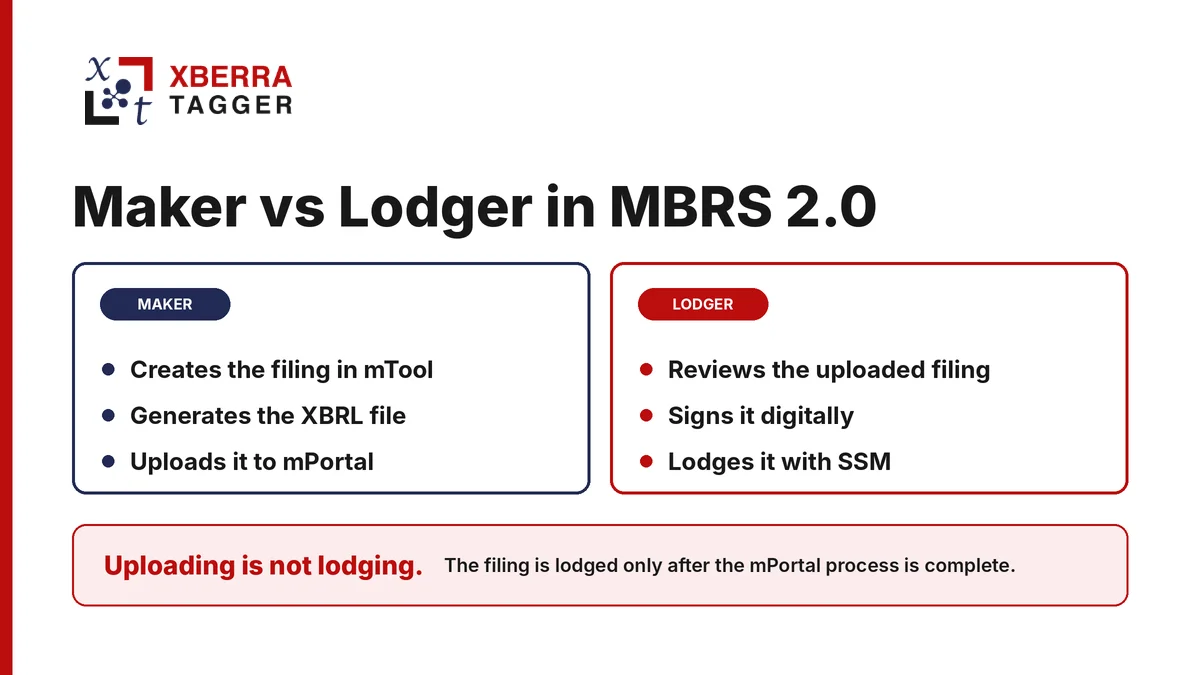
MBRS 2.0 separates the person who prepares the filing from the person who lodges it:
Maker
The Maker creates the filing in mTool, generates the XBRL file and uploads it to mPortal for the Lodger to review.
Lodger
The Lodger is the appointed licensed Company Secretary or Company Agent authorised to lodge the filing. The Lodger reviews the XBRL file uploaded by the Maker, approves or rejects it, digitally signs it and completes the lodgement with SSM through mPortal.
There may be more than one Maker or Lodger, depending on the company's filing setup and the designated user roles.
Generating the XBRL file in mTool does not constitute statutory submission. The filing is lodged only after the relevant mPortal process is completed.
Late Filing, Penalties and the 2026 MBRS 2.0 Waiver
SSM charges late lodgement fees for documents lodged after the relevant statutory dates. The fee depends on the document lodged and the length of the delay. Allow enough time to prepare, validate, review and lodge documents before the statutory date, and as a safeguard, aim to complete at least five to seven working days beforehand.
| Scenario | Consequence |
|---|---|
| Filed within the statutory deadline | No late lodgement fee applies. |
| Filed after the statutory deadline | The applicable late lodgement fee may apply, depending on the document and period of delay. |
| Maker uploads the filing to mPortal | The filing is not yet lodged. The Lodger must complete the required lodgement process within the applicable period. SSM's MBRS FAQ states that the Lodger must lodge within three days of the Maker's upload, or the filing will be purged. |
| Filing is queried or rejected by SSM | Review the reason provided in the notification, make the necessary corrections and follow the applicable resubmission process. Do not assume that an earlier upload automatically preserves the statutory filing date. |
| 2026 MBRS 2.0 late-fee waiver | SSM extended the waiver for eligible Annual Return and Financial Statement filings until 30 September 2026, subject to the specified conditions and delay period. This extension has expired. Check SSM's latest announcements for any subsequent waiver or extension before relying on an exemption. |
Common mTool & mPortal Errors That Slow MBRS Filing
MBRS delays are usually caused by incomplete source documents, inaccurate filing details, XBRL tagging errors, unresolved validation issues or problems with the mPortal lodgement. Review and address these before submission:
- Filing older or partial financial statements or supporting documents instead of the final versions
- Using MFRS instead of MPERS (or vice versa). Review the filing details and correct this in mTool before creating the final XBRL file
- Overlooking validation warnings without verifying that the information they flag is correct
- Failing to submit the documents that support the selected filing category
- Not confirming that the authorised Lodger can log in to mPortal and lodge successfully
- Reporting comparative figures against the wrong reporting period
- Installing an old version of mTool instead of the one available from SSM's official MBRS tool centre
There is also a balance between speed and review. A single preparer may be enough for simple filings, but an independent review can help spot errors in consolidated accounts, amended financial statements and high-volume filings. A documented checklist and review process reduces unnecessary corrections and delays.
Need Help With mTool Preparation or mPortal Filing?
When internal teams do not have the capacity to tag, validate and troubleshoot MBRS files, Xberra Tagger can prepare XBRL financial statements and annual returns, validate them through mTool and support the final filing process. The practical benefit is not just faster production: you keep client approval and filing control while specialist work is handled with clear turnaround and fixed pricing.
The safest filing routine is straightforward: finalise the source documents, validate the right package, review the portal submission carefully and keep proof of every completed step. No delays. No avoidable rework.
Frequently Asked Questions About mTool and mPortal MBRS Filing
mTool is SSM's preparation tool used to enter filing information, complete the relevant MBRS templates, validate the data and generate the XBRL file. mPortal is the online submission platform where the Maker uploads the XBRL file and the authorised Lodger reviews, digitally signs and lodges it with SSM.
MBRS 2.0 allows three types of submissions: Annual Return (AR), Financial Statement and Report (FS), and Exemption Application (EA) in respect of the Annual Return and Financial Statement. The filing category to select depends on the company's statutory compliance needs and situation.
The Maker prepares the filing using mTool and uploads the generated XBRL file to mPortal. The Lodger, the authorised Company Secretary or Company Agent, approves the uploaded filing, signs it digitally and lodges it with SSM.
No. mTool applies a set of SSM business rules, but these rules will not catch every error. Compare the information in the XBRL filing against the original accounts and supporting evidence, and correct errors before filing. Warnings may be ignored only if the information reported is accurate.
The Lodger must lodge the filing with SSM within three days of the Maker's upload. Otherwise the uploaded filing will be purged. The Maker should coordinate with the Lodger so the lodgement is completed on time.